

26R1.0 Functionality Guide
The Functionality Guide is intended for Sales Operations, Business Administrators, System Integrators, and others responsible for making decisions about what features are needed for end users to be successful and deciding which features work together with existing customer configurations.
Engage
Attendance Reporting for Zoom Meetings
Attendance reporting for Zoom meetings is an automated process to capture attendee data from Zoom and store it in Veeva CRM, enabling admins to analyze and report on metrics for Zoom meetings.
Who can use this feature?
- Browser, iPad Users
- Available to users with Engage licenses. Users do not need to be assigned to Engage groups.
- Admin Users
Using Attendance Reporting for Zoom Meetings
The Engage Reporting Process retrieves Zoom attendance data and loads it into Veeva CRM, using the Zoom admin account associated with the meeting host. The Engage Reporting Process can be scheduled to run at certain intervals or performed immediately by selecting the Run button on the Engage Meeting Process Administration page.
If a different remote meeting type was previously scheduled for the call, attendance data is only pulled for Remote_Meeting_vod record Zoom_Call_Meeting_vod record type. For more on switching meeting types, see Switching Remote Meeting Types.
The following data is captured on a Remote_Meeting_vod record for each Zoom meeting started from Veeva CRM:
- Engagement_Minutes_vod - Captures the total number of minutes where the host and at least one attendee were in the meeting together
- Meeting_Outcome_Status_vod - Indicates the meeting outcome using the following values:
- Meeting_Not_Started_vod - Displays if the meeting never started
- Meeting_Not_Started_and_Attendees_Joined_vod - Displays if attendees joined the meeting but the host never started the meeting. Whether attendees can join a meeting before the host depends on the organization’s Zoom configuration.
If waiting rooms are enabled for Zoom and an attendee joins the waiting room, but does not join the meeting, they are not counted as an attendee.
- Meeting_Without_Attendees_vod - Displays if the meeting started but no attendees joined
- Meeting_With_Attendees_vod - Displays if the meeting started and at least one external attendee joined
- Attendance_Report_Process_Status_vod - Indicates the status of the reporting process:
- Success_vod - Displays when the record is successfully processed for the last time. If more than one call references the same Remote_Meeting_vod record, this value is the last time the last call is processed.
- Retry_vod - Displays if the admin manually sets the field value to Retry_vod to re-run the attendance reporting process for the meeting. During the next attendance processing job, remote meeting and remote meeting attendee data is updated accordingly.
- Empty (no value) - The field is empty if the process was retried once, but the record is still in the two-week processing window or the record is set to a date in the future
Only one Remote_Meeting_vod record is created for each Zoom Meeting, regardless of how many times the individual meeting was started and stopped.
The following data is captured on a Remote_Meeting_Attendee_vod record for each device joining the meeting:
- Data from Zoom:
- Attendee_Type_vod - The type of attendee. Available values are:
- Host_vod - Attendee has the host role
- User_Attendee_vod - Attendee is not a host and has a Participant User ID
- External_Attendee_vod - All other attendees
- Device_vod - The device used to join the meeting. This data may or may not be provided by Zoom.
- Ip_Address_vod - The IP address of the attendee. This data may or may not be provided by Zoom.
- Join_Time_vod - Datetime when the attendee joined the meeting
- Leave_Time_vod - Datetime when the attendee left the meeting
- Meeting_Duration_vod - Number of minutes the attendee was in the meeting
- Meeting_End_Time_vod - Datetime when the meeting ended
- Meeting_Start_Time_vod - Datetime when the meeting started
- Name_vod - The name the attendee joined the meeting with
- Network_Type_vod - The network type of the attendee. This data may or may not be provided by Zoom.
- Remote_Meeting_vod - Lookup to the Remote_Meeting_vod record for the meeting joined
- VExternal_Id_vod - Unique record ID for the attendee
- Data from attendee reconciliation:
- Account_vod
- Attendee_Email_vod
- External_User_Id_vod
- System_Reconciliation_Processed_Datetime_vod
- System_Reconciled_Account_Id_vod
- System_Reconciled_Rule_vod
- System_Reconciled_User_Id_vod
- User_vod
If an attendee rejoins a meeting after leaving or being disconnected for any reason, a new Remote_Meeting_Attendee_vod record is created each time they join or rejoin the meeting.
Reviewing Attendance Reporting Process History
To monitor success and failure rates, admin users can view the process history and download logs for the last 10 Zoom attendance job runs in the Zoom Attendance Report Process History table in the Engage Meeting Process Administration page.
Reconciling Microsoft Teams Meeting Attendees with Accounts and Users
To ensure Microsoft Teams meeting data is accurate for reporting, Veeva CRM automatically attempts to reconcile Microsoft Teams attendees with the correct accounts and users after a meeting ends, allowing users to quickly review and manually update any attendees without an automatic match. This process saves end users time by matching data received from Microsoft Teams directly to records in Veeva CRM.
Who can use this feature?
- Browser, CRM Desktop (Windows), iPad Users
- Available to users with Engage licenses. Users do not need to be assigned to Engage groups.
- End Users
Reconciling Microsoft Teams Meeting Attendees with Accounts and Users
When a meeting attendee is reconciled with a person account call attendee or user attendee after a Microsoft Teams meeting, the account is stamped on the appropriate Remote Meeting Attendee record:
- For calls with one attendee, the meeting attendee data is automatically matched with the account or user on the call
- For calls with multiple attendees, the email address for each attendee provided by Microsoft is matched against the email address on an account or user record
- If a match cannot be found, the field is left blank and end users can populate it later
Since automatic reconciliation is attempted based on the data provided by Microsoft Teams, some attempted matches may be incorrect and some attendees may not have matches.
End users can review the attempted matches on the call report and update them if needed, as well as manually populate the appropriate accounts or users for attendees without attempted matches. End users can also submit call reports with unreconciled accounts and reconcile them later. However, if attendance data from Microsoft Teams is not available before end users must submit the call, they can first submit the call and reconcile the attendees later.
To review the attendee information for a Microsoft Teams meeting on a submitted or unsubmitted call report:
- Navigate to the call report for the Microsoft Teams meeting.
- Select the header to view the attendee data.
- Select Check for Updates to ensure the attendee information from Microsoft is up to date.
- Ensure the correct account or user is selected in the Attendees on Call Report drop-down menu for each attendee. If the correct account does not display as an option, users can perform either of the following:
- Select Add attendees to add the correct Veeva CRM account or user to the call report. This option only displays when the user is configured to manage accounts or users on the call.
- Select Attendee not on call report
End users cannot manage accounts or users from Attendees on Call Report drop-down menu on submitted calls. To add a new call attendee to a submitted call, end users must unlock the call for editing. See Unlocking Submitted Calls for more information.
- Save or submit the call.
End users can reconcile multiple Microsoft Teams meeting attendees to the same Veeva CRM account or user. If the same Veeva CRM account or user is selected for multiple meeting attendees, removing the account or user from the call clears the match for all of those meeting attendees.
Additionally, when viewing the Attendees section of the call report, the Microsoft Teams icon displays for the Veeva CRM accounts and users who are already reconciled.
On Browser, end users can hover over the icon to view the meeting attendees reconciled with the account or user.
Reconciling Zoom Meeting Attendees with Accounts and Users
To ensure Zoom meeting data is accurate for reporting, Veeva CRM automatically attempts to reconcile Zoom attendees with the correct accounts and users after a meeting ends, allowing users to quickly review and manually update any attendees without an automatic match. This process saves end users time by matching data received from Zoom directly to records in Veeva CRM.
Who can use this feature?
- Browser, iPad Users
- Available to users with Engage licenses. Users do not need to be assigned to Engage groups.
- End Users
Reconciling Zoom Meeting Attendees with Accounts and Users
When a meeting attendee is reconciled with a person account call attendee or user attendee after a Zoom meeting, the account is stamped on the appropriate Remote_Meeting_Attendee_vod record:
- For calls with one attendee, the meeting attendee data is automatically matched with the account or user on the call
- For calls with multiple attendees, the email address for each attendee provided by Microsoft is matched against the email address on an account or user record
- If a match cannot be found, the field is left blank and end users can populate it later
Since automatic reconciliation is attempted based on the data provided by Zoom, some attempted matches may be incorrect and some attendees may not have matches.
The following fields are populated on each Remote_Meeting_Attendee_vod record for automatic reconciliation:
- Account_vod - Lookup to the Account record of the automatic match
- Attendee_Email_vod - The email address associated with the attendee’s Zoom account
- External_User_Id_vod - The Zoom user ID associated with the attendee’s Zoom account
- System_Reconciliation_Processed_Datetime_vod - The datetime when an automatic account or user match was found for the attendee
- System_Reconciled_Account_Id_vod - The Account ID of the automatic account match
- System_Reconciled_Rule_vod - Indicates how the automatic match was found. Available values are:
- Email_Match_vod - The email address of the Account or User record matched the attendee’s email address provided by Zoom
- One_Attendee_On_Call_vod - There was one account or user on the call, and one attendee joined the meeting
- System_Reconciled_User_Id_vod - The User ID of the automatic user match
- User_vod - Lookup to the User record of the automatic match
End users can review the attempted matches on the call report and update them if needed, as well as manually populate the appropriate accounts or users for attendees without attempted matches. End users can also submit call reports with unreconciled accounts and reconcile them later. If attendance data from Zoom is not available before end users must submit the call, they can first submit the call and reconcile the attendees later.
To review the attendee information for a Zoom meeting on a submitted or unsubmitted call report:
- Navigate to the call report for the Zoom meeting.
- Select the header to view the attendee data.
- Select Check for Updates to ensure the attendee information from Zoom is up to date.
- Ensure the correct account or user is selected in the Attendees on Call Report drop-down menu for each attendee. If the correct account does not display as an option, users can perform either of the following:
- Select Add attendees to add the correct Veeva CRM account or user to the call report. This option only displays when the user is configured to manage accounts or users on the call.
- Select Attendee not on call report
End users cannot manage accounts or users from Attendees on Call Report drop-down menu on submitted calls. To add a new call attendee to a submitted call, end users must unlock the call for editing. See Unlocking Submitted Calls for more information.
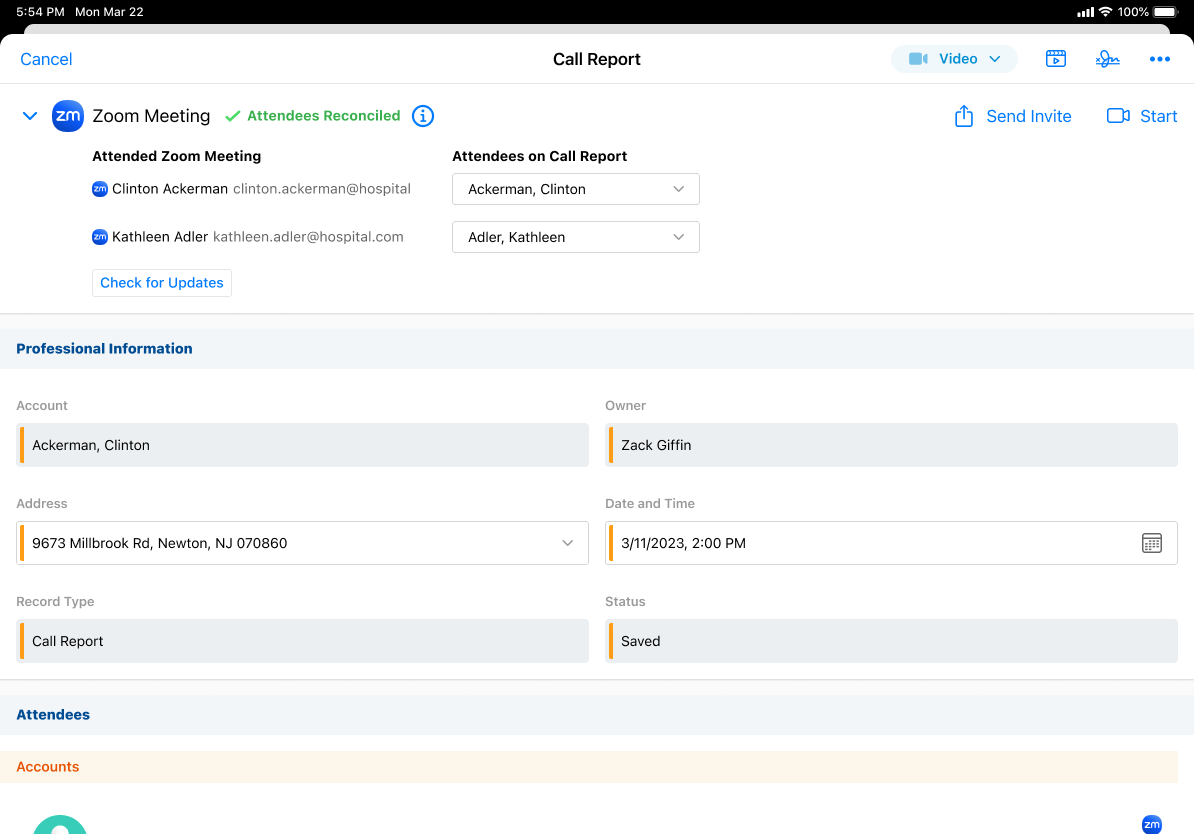
- Save or submit the call.
End users can reconcile multiple Zoom meeting attendees to the same Veeva CRM account or user. If the same Veeva CRM account or user is selected for multiple meeting attendees, removing the account or user from the call clears the match for all of those meeting attendees.
When viewing the Attendees section of the call report, the Zoom icon displays for the Veeva CRM accounts and users who are already reconciled.
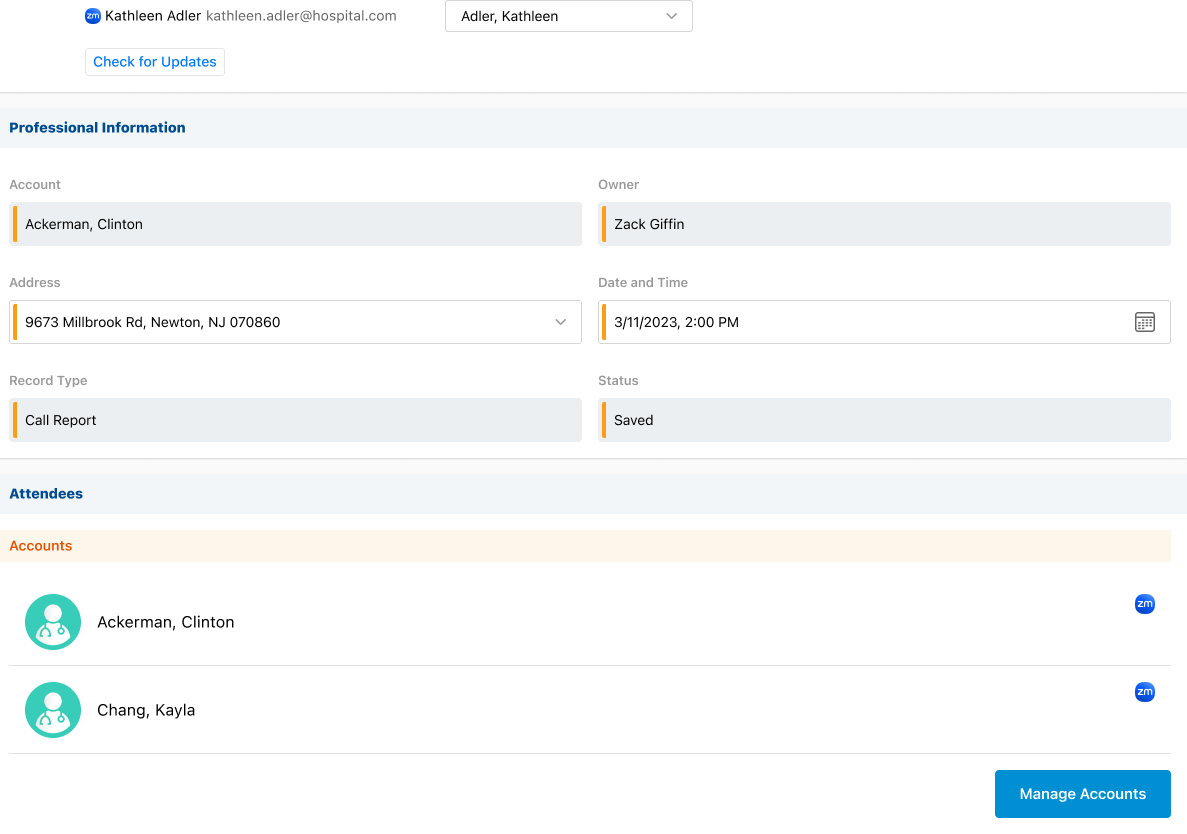
On Browser, end users can hover over the icon to view the meeting attendees reconciled with the account or user.

